Definition
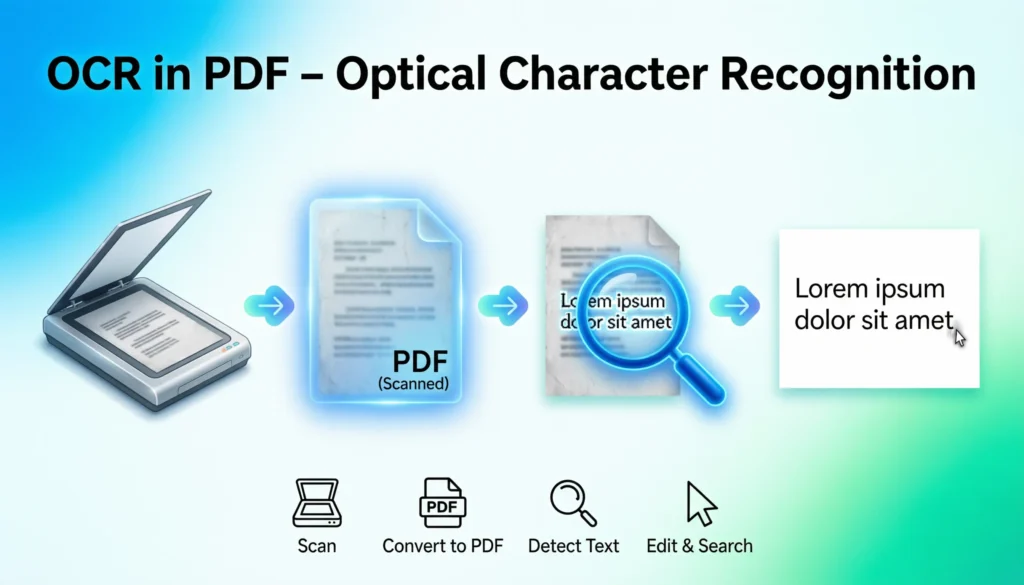
OCR in PDF stands for Optical Character Recognition. It is a technology that converts scanned documents, images, or non-editable PDFs into searchable and editable text.
OCR analyzes the shapes of letters and numbers in an image-based document and transforms them into machine-readable text that you can copy, search, or edit.
Understanding OCR in PDFs
What Is OCR Technology?
Optical Character Recognition (OCR) is a digital technology that identifies printed or handwritten characters within images or scanned files.
In the context of PDFs, OCR is used when a document is not originally created as text but instead scanned as an image.
Without OCR:
- Text cannot be copied
- Text cannot be searched
- Text cannot be edited
With OCR:
- Text becomes searchable
- Text can be copied and edited
- Documents become accessible and easier to manage
Simple Example
Imagine scanning a printed contract into a PDF.
| Situation | Result |
|---|---|
| Without OCR | The document behaves like an image |
| With OCR | The text becomes selectable and searchable |
This is why OCR is extremely important in digital document management.
Origin of OCR Technology
Early Development
OCR technology dates back to the early 1900s, but it became widely used in computing during the 1950s and 1960s.
Early OCR systems were limited and could only recognize specific fonts and printed characters.
Evolution With AI
Modern OCR systems now use:
- Machine learning
- Artificial intelligence
- Pattern recognition
- Language processing
These improvements allow OCR tools to recognize:
- Multiple fonts
- Handwritten text
- Complex layouts
- Different languages
Today, OCR is widely used in business, education, banking, and government systems.
Why OCR Is Popular in PDF Documents
The Rise of Digital Documents
PDF is one of the most common document formats used worldwide. Many organizations scan physical papers and store them as PDFs.
However, scanned PDFs are often image-based.
This is where OCR becomes essential.
Benefits of OCR in PDFs
OCR technology provides several practical advantages:
- Makes scanned PDFs searchable
- Allows users to copy text from images
- Enables document editing
- Improves accessibility for screen readers
- Reduces manual typing
Real-World Example
A university scans thousands of paper records.
Without OCR:
- Staff must manually read documents.
With OCR:
- They can search for a student name instantly.
This saves time, money, and effort.
How OCR Works in a PDF
Step-by-Step Process
OCR works through several stages.
- Image scanning
- The system scans the document image.
- Character detection
- OCR identifies letters and numbers.
- Pattern matching
- The software compares characters with known patterns.
- Text conversion
- The characters are converted into editable text.
- Output generation
- The new PDF becomes searchable and editable.
OCR Workflow Table
| Step | What Happens |
|---|---|
| Scan | Document image is analyzed |
| Detect | Letters and symbols are identified |
| Recognize | OCR matches patterns with known characters |
| Convert | Image text becomes digital text |
| Export | Searchable PDF is created |
Real-World Usage of OCR in PDFs
OCR is used in many industries every day.
Common Use Cases
1. Document Digitization
Companies convert paper archives into searchable digital files.
2. Banking and Finance
Banks scan forms, receipts, and statements.
3. Education
Students convert scanned textbooks into searchable PDFs.
4. Legal Industry
Law firms digitize contracts and case documents.
5. Healthcare
Hospitals store patient records digitally.
Examples of OCR in PDFs
Friendly Everyday Example
You scan your school notes and save them as a PDF.
After using OCR:
You can search for the word “biology” inside the document. 📚
Neutral Professional Example
An HR department scans job applications and uses OCR to extract candidate information.
Slightly Frustrated Example
Someone receives a scanned PDF without OCR and says:
“I can’t even copy the text from this file 😅”
This is a common situation when OCR has not been applied.
Example Table: OCR vs Non-OCR PDFs
| Feature | PDF Without OCR | PDF With OCR |
|---|---|---|
| Search text | ❌ No | ✅ Yes |
| Copy text | ❌ No | ✅ Yes |
| Edit text | ❌ No | ✅ Sometimes |
| Accessibility | ❌ Limited | ✅ Improved |
| Data extraction | ❌ Difficult | ✅ Easy |
Popular OCR Tools for PDFs
Many software tools provide OCR capabilities.
Common OCR Software
- Adobe Acrobat OCR
- Google Drive OCR
- Microsoft OneNote OCR
- ABBYY FineReader
- Tesseract OCR
These tools can convert scanned documents into fully searchable PDFs.
Comparison With Related Terms
OCR is often confused with other document technologies.
Difference OCR vs PDF Text Recognition
| Term | Meaning |
|---|---|
| OCR | Converts image text into machine-readable text |
| Text Recognition | Often another name for OCR |
| PDF Editing | Changing text inside an already editable PDF |
| Scanning | Capturing a document as an image |
Using OCR vs Manual Typing
| Method | Speed | Accuracy |
|---|---|---|
| Manual typing | Slow | High |
| OCR technology | Very fast | Usually high |
Alternate Meanings of OCR
Although OCR commonly means Optical Character Recognition, the abbreviation can have other meanings depending on context.
Other Possible Meanings
| OCR Meaning | Context |
|---|---|
| Optical Character Recognition | Technology / PDFs |
| Oxford Cambridge RSA | UK education board |
| Office of Civil Rights | Government agency |
| Optical Code Reader | Barcode scanning |
However, when discussing PDF files or document scanning, OCR almost always refers to Optical Character Recognition.
Polite or Professional Alternatives
Sometimes professionals describe OCR using other terms.
Alternative Phrases
- Text recognition technology
- Document digitization
- Image-to-text conversion
- Scanned document processing
These phrases are commonly used in technical documentation and business settings.
Practical Tips for Using OCR in PDFs
Improve OCR Accuracy
To get better OCR results:
- Use high-quality scans
- Avoid blurry documents
- Ensure good lighting
- Use clear fonts
- Scan at 300 DPI resolution
When OCR Works Best
OCR performs best with:
- Printed text
- Clean layouts
- Standard fonts
It may struggle with:
- Handwriting
- Complex formatting
- Very low-resolution images
FAQs
What does OCR mean in a PDF file?
OCR stands for Optical Character Recognition, a technology that converts scanned text inside PDFs into searchable and editable digital text.
Why is OCR important for PDFs?
OCR makes PDFs searchable, editable, and accessible, which helps users quickly find and copy information from scanned documents.
Can you copy text from a PDF without OCR?
Usually no. If a PDF is image-based, the text cannot be copied until OCR is applied.
How do I know if a PDF has OCR?
Try selecting or searching text in the document. If you can highlight text or use the search feature, OCR has likely been applied.
Is OCR 100% accurate?
Not always. Accuracy depends on scan quality, font clarity, and document layout.
What software can perform OCR on PDFs?
Popular tools include Adobe Acrobat, Google Drive, ABBYY FineReader, and Tesseract OCR.
Does OCR work on handwritten text?
Some advanced OCR tools can recognize handwriting, but accuracy may vary.
Is OCR free to use?
Some OCR tools are free, while advanced professional software may require a subscription.
Conclusion
OCR technology plays a crucial role in modern digital documents. When applied to PDFs, Optical Character Recognition converts scanned images of text into searchable and editable content, making documents far more useful.
Without OCR, scanned PDFs behave like simple images. But with OCR, they become powerful, searchable, and accessible files.
If you frequently work with scanned documents, enabling OCR can save hours of manual work and make document management much easier.
Discover More Related Articles:

Sarah Williams is the passionate author behind WordNexy.com, dedicated to creating content that informs, inspires, and sparks curiosity. With a love for words and storytelling, she transforms ideas into meaningful articles that educate, entertain, and leave a lasting impression on every reader.