Definition
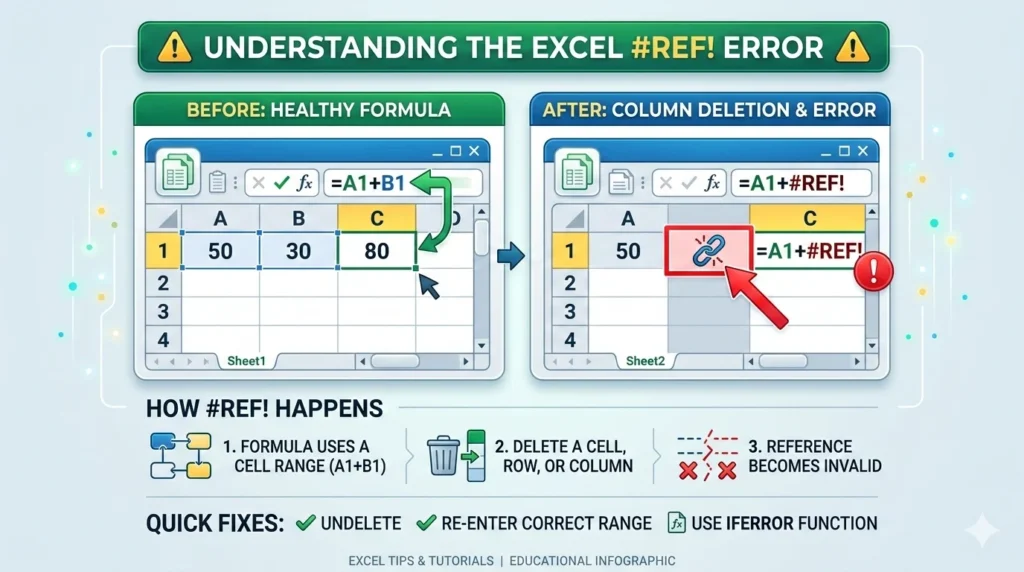
In Excel, REF appears as#REF!, which stands for Reference Error. It occurs when a formula refers to a cell, range, or worksheet that is no longer valid—usually because the referenced cell was deleted, moved, or replaced.
If you’ve ever worked with formulas in Microsoft Excel and suddenly seen #REF! appear in a cell, you’re not alone. This common Excel error can confuse beginners and even experienced spreadsheet users. One moment your formula works perfectly, and the next it displays a strange message that stops your calculations.
Understanding what REF means in Excel is important because it helps you troubleshoot broken formulas, maintain accurate spreadsheets, and prevent errors that could affect reports or financial data.
Whether you’re managing budgets, analyzing data, or building advanced spreadsheets, learning how #REF! errors occur and how to fix them will save you time and frustration.
This guide explains everything in a clear and practical way—from the meaning of the error to real-world examples and solutions.
In simple terms:
- #REF! = Excel cannot find the cell or range your formula is referencing.
Example:
=A1+B1
If column B is deleted, the formula becomes invalid and Excel displays:
=A1+#REF!
This means the formula lost its reference.
Understanding Cell References in Excel
What Is a Cell Reference?
A cell reference tells Excel where to find data used in a formula.
Example:
| Formula | Meaning |
|---|---|
| =A1+B1 | Adds values in A1 and B1 |
| =SUM(A1:A10) | Adds values from A1 to A10 |
| =VLOOKUP(A2,Sheet2!A:B,2,FALSE) | Searches for A2 value in another sheet |
When one of these referenced cells disappears, Excel cannot calculate the formula correctly.
That’s when #REF! errors appear.
Why the #REF! Error Happens
Common Causes of REF Errors in Excel
Several actions can cause a #REF! error.
1. Deleting Referenced Cells
The most common cause.
Example:
=A1+B1
If B1 is deleted, the formula becomes:
=A1+#REF!
2. Deleting a Column or Row
If a formula references a column or row that gets removed, the reference breaks.
Example:
=SUM(B2:B10)
Delete column B, and Excel cannot locate it anymore.
3. Copying Formulas Incorrectly
Sometimes copying formulas between sheets or files causes references to break.
4. Broken External References
If your formula references another workbook that is deleted or moved, Excel may return #REF!.
Example:
=[Sales2023.xlsx]Sheet1!A1
If that file is removed, Excel loses the reference.
5. Using Lookup Functions Incorrectly
Functions like VLOOKUP, INDEX, MATCH, or OFFSET can generate REF errors if the referenced range is incorrect.
Example Table of REF Errors
Common REF Error Scenarios
| Scenario | Formula | Result |
|---|---|---|
| Normal formula | =A1+B1 | Correct result |
| Column B deleted | =A1+#REF! | REF error |
| Lookup range removed | =VLOOKUP(A2,A:B,2,FALSE) | #REF! |
| Sheet deleted | =Sheet2!A1 | #REF! |
| Broken external file | =[Report.xlsx]Sheet1!A1 | #REF! |
This table shows how deleting or moving data affects formulas.
Real-World Usage of REF in Excel
When Users Commonly See REF Errors
People often encounter REF errors when working with:
- Financial reports
- Data analysis spreadsheets
- Inventory tracking sheets
- Budget templates
- Dashboard calculations
Example scenario:
You create a formula:
=SUM(B2:B20)
Later, you delete column B while reorganizing your sheet.
Suddenly your totals show:
#REF!
Excel is basically saying:
“I can’t find the cells you told me to use.”
How to Fix the #REF! Error in Excel
Step-by-Step Solutions
1. Undo the Deletion
If you just deleted a referenced cell:
Press:
Ctrl + Z
This restores the reference.
2. Edit the Formula
Check the formula bar.
Replace #REF! with the correct cell reference.
Example:
Before:
=A1+#REF!
After:
=A1+C1
3. Recreate the Missing Column or Row
If a column was removed accidentally, add it back and update the formula.
4. Update Lookup Functions
Ensure lookup formulas use valid ranges.
Example correction:
=VLOOKUP(A2,A:C,3,FALSE)
Instead of referencing a deleted column.
5. Restore Deleted Sheets
If a sheet was deleted, restore it or adjust the formula to reference another sheet.
Tips to Prevent REF Errors
Best Practices for Excel Users
To avoid REF errors:
- Avoid deleting cells used in formulas
- Use named ranges
- Lock references with $ symbols
- Check formulas before deleting rows/columns
- Use structured tables
Example:
Instead of:
=SUM(A1:A20)
Use named ranges like:
=SUM(SalesData)
This keeps formulas safer.
Tone and Context of REF Usage
Unlike slang or internet abbreviations, REF in Excel is purely technical. It does not have emotional tone.
However, the situation where you see it may feel like:
- 😕 Confusing (Why is my formula broken?)
- 😬 Frustrating (My report stopped working)
- 😅 Fixable (Once you understand references)
Example reaction:
“Why is my spreadsheet showing #REF! everywhere?!”
Once you know what it means, fixing it becomes much easier.
REF vs Other Excel Errors
Excel has several error messages. REF is only one of them.
Excel Error Comparison
| Error | Meaning | Cause |
|---|---|---|
| #REF! | Invalid reference | Deleted cell |
| #VALUE! | Wrong data type | Text in numeric formula |
| #DIV/0! | Division by zero | Formula divides by zero |
| #NAME? | Unknown function | Misspelled formula |
| #N/A | Data not found | Lookup failure |
Understanding these helps you diagnose spreadsheet issues quickly.
Origin and Popularity of the REF Error
Why Excel Uses #REF!
The #REF! error has existed since early versions of Excel as a way to warn users about broken formulas.
Instead of silently producing wrong results, Excel shows an obvious error message to alert you that something is wrong.
This design choice improves data accuracy, especially in:
- Accounting spreadsheets
- Business analytics
- Financial forecasting
- Data reporting
Today, millions of Excel users encounter REF errors daily, making it one of the most recognized spreadsheet error messages.
Alternative Meanings of REF
Although REF in Excel means “reference error,” the abbreviation can have other meanings in different contexts.
Alternate Meanings
| Context | Meaning |
|---|---|
| Excel | Reference error |
| Academic writing | Reference or citation |
| Business forms | Reference number |
| Sports | Referee (short for “ref”) |
However, in Excel formulas, it almost always refers to invalid references.
Professional Alternatives and Solutions
How Professionals Avoid REF Errors
Experts use structured approaches to avoid broken formulas.
Common strategies include:
- Using Excel Tables
- Using INDEX/MATCH instead of fragile ranges
- Avoiding unnecessary deletions
- Auditing formulas with Trace Dependents
Excel tools like:
- Formula Auditing
- Evaluate Formula
- Error Checking
help identify where references break.
Practical Example Walkthrough
Step-by-Step Example
Imagine this data:
| A | B |
|---|---|
| 5 | 10 |
Formula:
=A1+B1
Result:
15
Now delete column B.
The formula becomes:
=A1+#REF!
Excel cannot locate B1, so it throws a reference error.
Fix:
=A1+C1
or restore column B.
FAQs
What does #REF mean in Excel?
The #REF! error means Excel cannot find a valid cell reference used in a formula, usually because a referenced cell, row, or column was deleted.
How do I fix #REF errors in Excel?
You can fix it by:
- Restoring deleted cells
- Editing the formula
- Updating the referenced range
- Undoing the deletion
Why does VLOOKUP show #REF?
VLOOKUP shows #REF! when the column index number refers to a column that no longer exists in the selected table range.
What causes invalid cell references in Excel?
Common causes include:
- Deleting rows or columns
- Removing worksheets
- Copying formulas incorrectly
- Broken external links
Is #REF a formula error?
Yes. It is one of Excel’s built-in formula error messages indicating invalid references.
Can REF errors affect calculations?
Yes. When a formula shows #REF!, Excel cannot calculate the result correctly.
How do I find REF errors quickly?
Use:
- Find & Replace (#REF!)
- Error Checking
- Formula Auditing tools
Can I prevent REF errors completely?
While not always avoidable, you can reduce them by using named ranges, structured tables, and careful editing of formulas.
Conclusion
The #REF! error in Excel simply means a formula is trying to use a cell reference that no longer exists. This usually happens when rows, columns, sheets, or external files are deleted or moved.
Although it may look confusing at first, the solution is usually straightforward: locate the broken reference and replace it with a valid one.
Once you understand how references work, dealing with #REF! errors becomes quick and easy, allowing you to maintain accurate and reliable Excel spreadsheets.
Discover More Related Articles:
- Understanding FIP in Baseball: Definition, Formula, and Uses (2026)
- TW in Jewelry Meaning: What It Really Stands For (2026)

Sarah Williams is the passionate author behind WordNexy.com, dedicated to creating content that informs, inspires, and sparks curiosity. With a love for words and storytelling, she transforms ideas into meaningful articles that educate, entertain, and leave a lasting impression on every reader.